Introduction
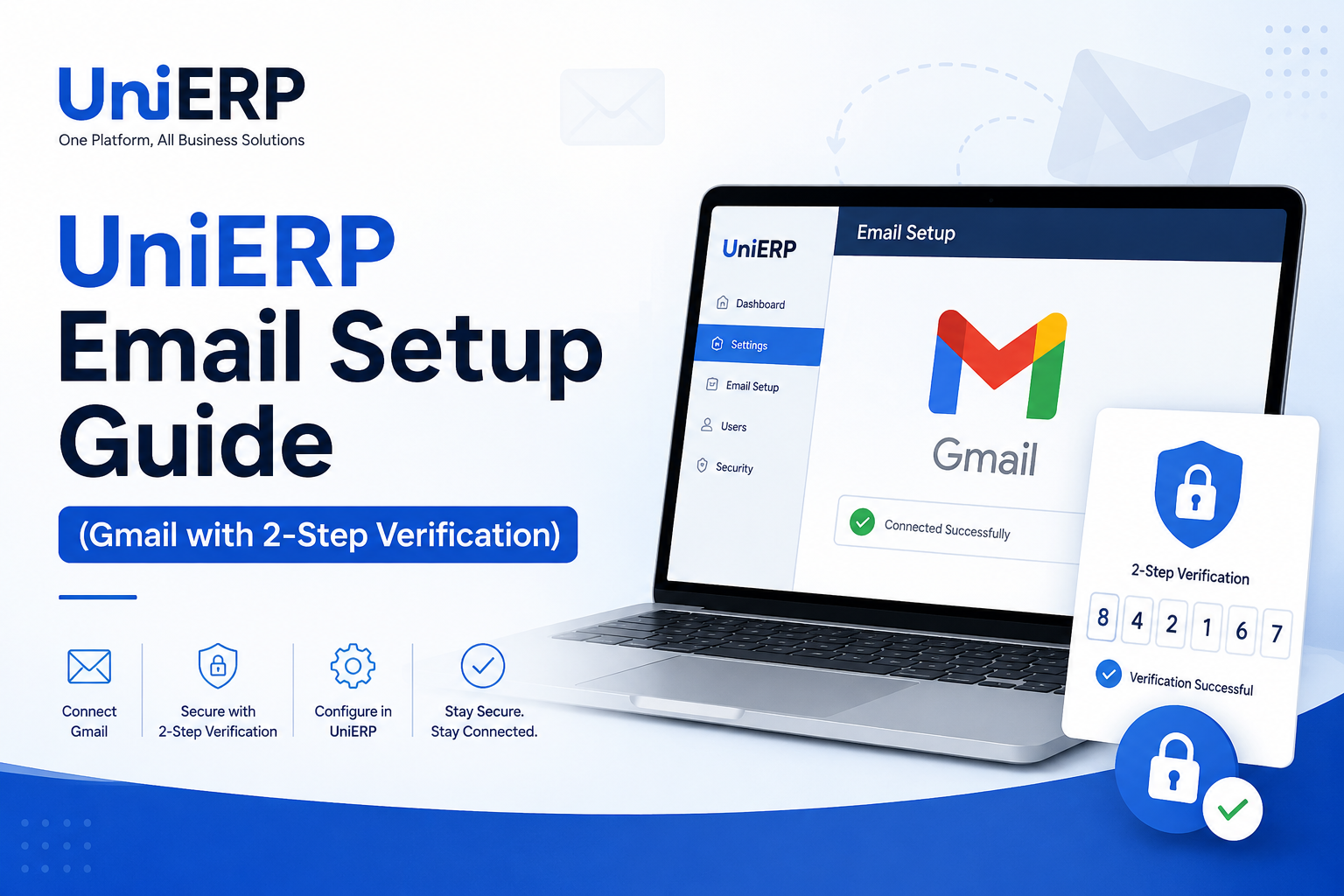
This guide explains how to connect your Gmail account with UniERP when 2-Step Verification (2FA) is enabled.
Due to Google’s security policies, you cannot use your regular Gmail password in third-party systems like UniERP. Instead, you must generate a secure app password and use that for email configuration.
Once setup is complete, you will be able to
- Send emails directly from UniERP
- Receive emails into UniERP (Communication module)
- Use Gmail as your default business email
Why This Setup Is Required
If your Google account has 2-Step Verification enabled, standard login credentials will not work in UniERP.
Solution: Generate a Google App Password
This ensures:
- Secure integration
- No exposure of your main Gmail password
- Easy revocation anytime
Step 1: Generate App Password in Google Account
Follow these steps carefully:
1. Login to Your Google Account
Go to your Google account and ensure you are logged in.
2. Open App Passwords Page
Visit https://myaccount.google.com/apppasswords
- Google may ask you to re-enter your password for verification.
3. Create a New App Password
- You will see a field:
“To create a new app-specific password, type a name…”
- Enter the name: UniERP
- Click Generate
Google will generate a 16-character password (formatted with spaces). Important:
- Copy this password immediately
- Save it securely (you won’t be able to see it again)
Step 2: Configure Gmail in UniERP
Now you will connect your Gmail account inside UniERP.
1. Navigate to Email Account
Go to:
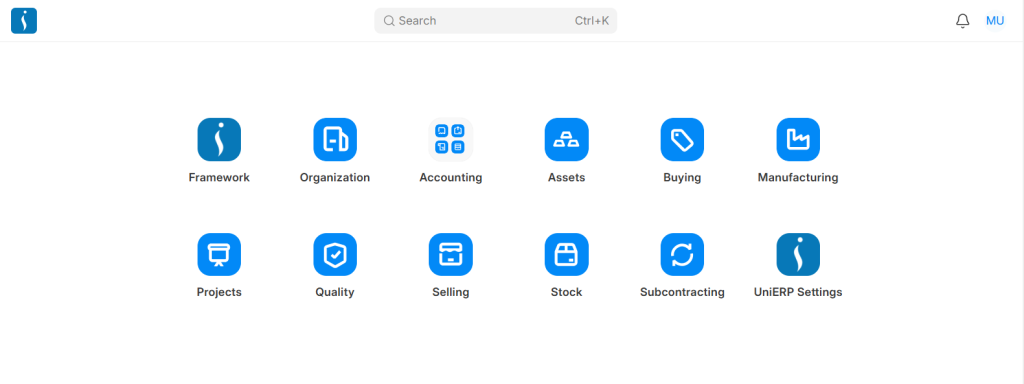
Framework → Email → Email Account → Add Email Account
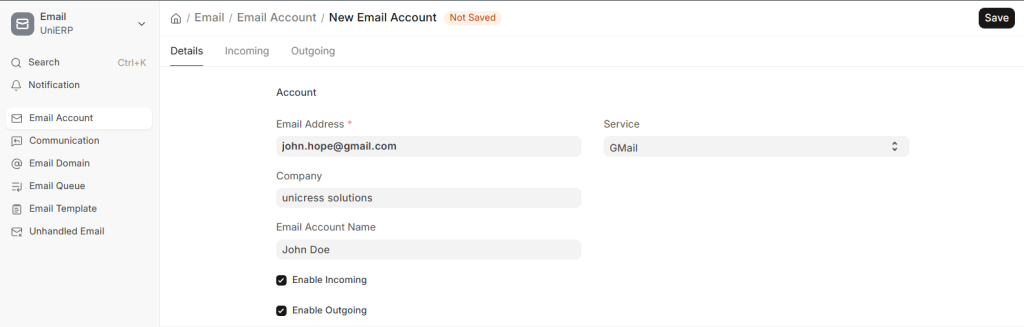
2. Basic Configuration
Fill in the following details:
- Email ID: yourname@gmail.com
- Service: GmailEmail Account Name: Your business/display name Enable:
Enable Incoming
Enable Outgoing
- Service: GmailEmail Account Name: Your business/display name Enable:
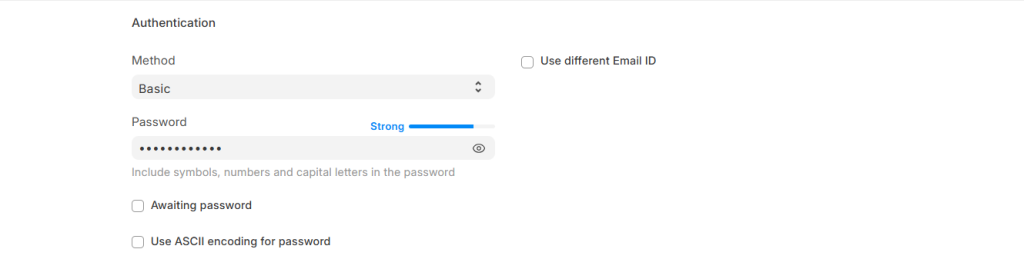
3. Authentication Settings
- Method: Basic
- Password: Paste the 16-character App Password
Keep these unchecked:
Awaiting password
Use ASCII encoding for password
4. Advanced Configuration (Recommended)
To make this your primary email account:
Incoming Tab:
Enable Default Incoming
Outgoing Tab:
Enable Default Outgoing

You can also configure:
- Email Signature
- Auto Reply
- Footer
- Company Logo
Step 5: Save Configuration
Click Save to apply settings.
Final Result & Testing
After successful setup:
- You can send emails from UniERP
- You can fetch incoming emails
- All emails will appear in:
Communication Module
Test Checklist:
- Send a test email
- Check inbox sync
- Verify email logs in Communication
Security Notes
- An app password is safer than your main password
- You can revoke it anytime from Google settings
- Do NOT share this password publicly
Pro Tip
For businesses using UniERP:
- Use a dedicated business email (e.g., info@yourcompany.com via Gmail Workspace)
- Configure it as default outgoing email for branding consistency
Need Help?
If you face any issues while configuring email in UniERP:
- Contact UniERP Support
- Request onboarding assistance
- Get help with advanced email automation
Conclusion
Setting up Gmail with UniERP using an app password ensures a secure, stable, and professional email workflow for your business operations.
Once configured, UniERP becomes your central communication hub, improving productivity and record management.